Getting started
Security Shepherd is a capture-the-flag (CTF) platform for learning web and mobile application security. Most of its levels are based on the OWASP Top 10. Each topic starts with a lesson that explains the vulnerability, followed by challenges that get harder as you go.
This page gets Security Shepherd running on your own machine with Docker, takes you through the first login, and shows you how to try the levels. To run an event for other people, continue with Running a CTF.
Run it with Docker
You need Git, JDK 17, Maven 3.9.2 or newer, and Docker with Docker Compose.
git clone https://github.com/OWASP/SecurityShepherd.git
cd SecurityShepherd

# Build the WAR and generate the database scripts the images need
mvn -Pdocker clean install -DskipTests

# Build the images and start the containers
docker compose up -d --build
Deploying into production covers using your own TLS certificate and the other changes to make before other people use it, and Upgrading covers moving an existing installation to a new version.
This setup is a quick start for a laptop or a classroom lab, not a production deployment. It uses well-known default passwords and a self-signed certificate. Running a CTF lists what to change before other people use it.
What's running
Docker Compose builds three images and starts a container from each:
| Container | Image | What it does |
|---|---|---|
secshep_tomcat |
owasp/security-shepherd |
The web application, on Tomcat 11. Serves HTTPS on port 443 and redirects HTTP on port 80 to it. |
secshep_mariadb |
owasp/security-shepherd_mariadb |
The core database, with users, scores and settings, plus a separate schema for each SQL-based level. Listens on 127.0.0.1:3306 only. |
secshep_mongo |
owasp/security-shepherd_mongo |
MongoDB, for the NoSQL levels. Listens on 127.0.0.1:27017 only. |
The ports come from .env, along with the passwords and the container names.
Data is kept in Docker volumes, so it survives docker compose down and rebuilds. The volume names start with the Compose project name, which is the name of the folder you cloned into, for example securityshepherd_data.
| Volume | Holds |
|---|---|
data |
The MariaDB databases |
conf |
Tomcat's configuration, the TLS keystore, and the database connection settings (database.properties and mongo.properties) |
logs |
Tomcat's logs |
mongodata, mongoconfig |
The MongoDB data and configuration |
First-time setup
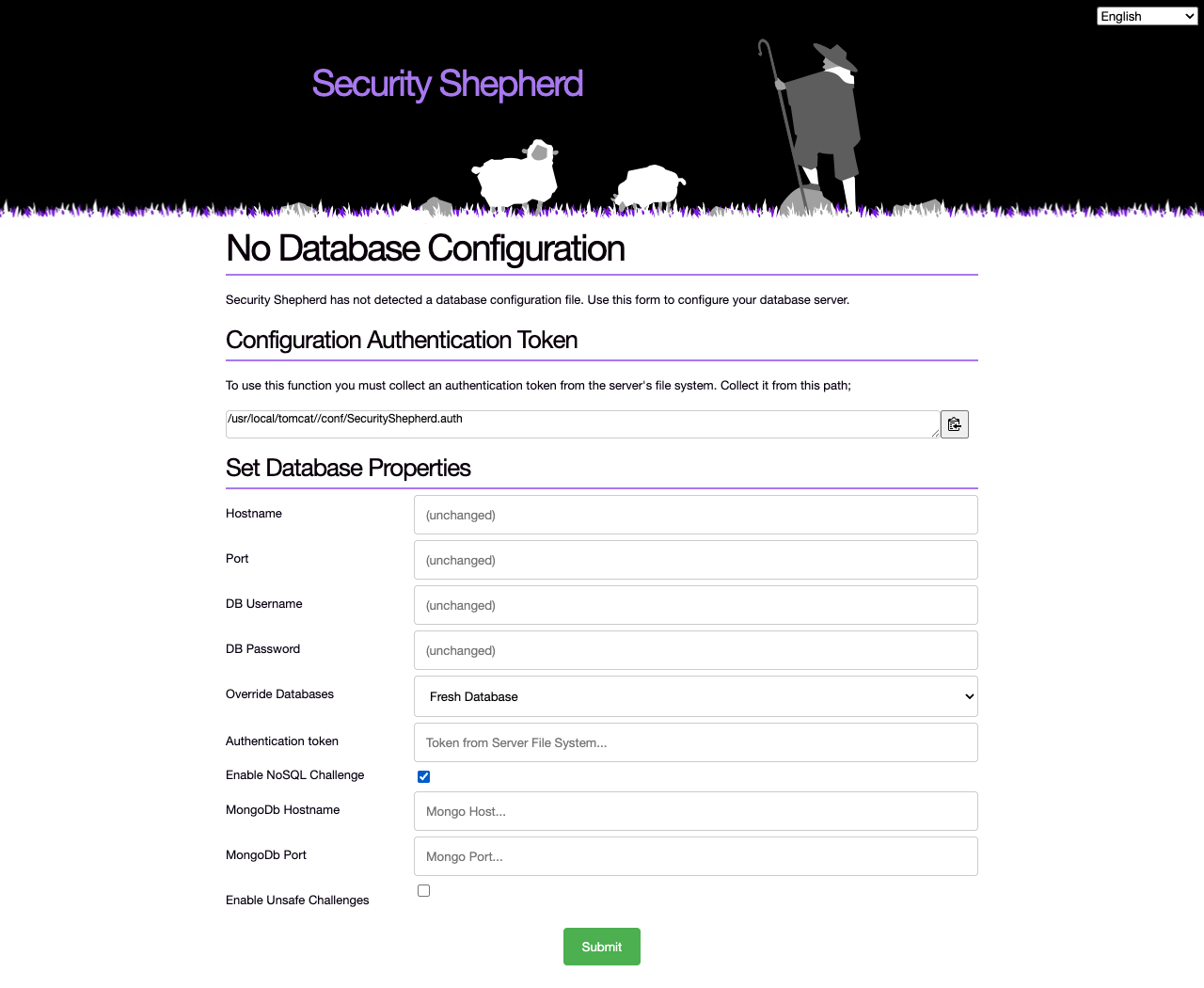
Open https://localhost. Your browser warns about the certificate, because it's self-signed. On a fresh installation, Security Shepherd shows the No Database Configuration page.
-
Get the setup authentication token from the Tomcat container and paste it into Authentication token:
-
Fill in the database settings. Tomcat reaches the databases over the Docker network, so use the container names, not
localhost:Field Value Hostname, Port secshep_mariadb,3306DB Username, DB Password root, and theDB_PASSfrom.env(CowSaysMoounless you changed it)Override Databases Fresh Database for a new installation. Do not override keeps the data already in the database. -
To include the NoSQL injection level, tick Enable NoSQL Challenge, and enter
secshep_mongoand27017in the MongoDb Hostname and Port fields that appear. -
Leave Enable Unsafe Challenges off unless the machine is isolated, because those challenges make the server itself vulnerable.
-
Submit the form, and wait for the confirmation that the database configuration is complete.
Log in
Log in with:
- username:
admin - password:
password
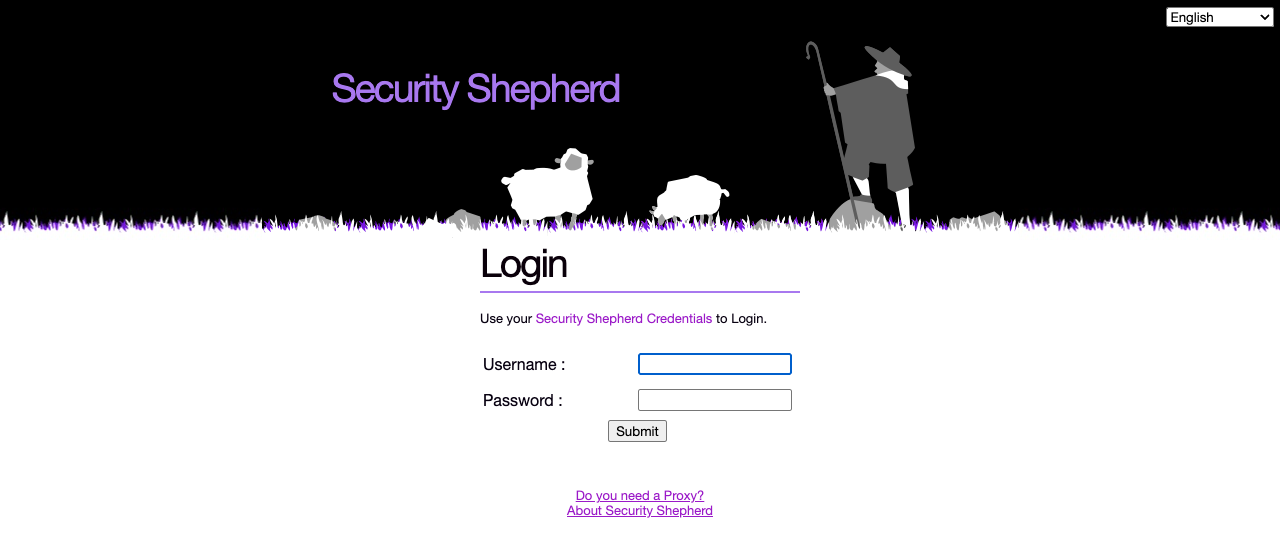
You're asked to change the password straight away, because the default one is public. You can also change the username, which is shown on the scoreboard.
Try the levels
You need an intercepting proxy, such as OWASP ZAP or Burp Suite Community Edition. Both come with a preconfigured browser.
The levels start closed. As an admin, the start page (Let's Get Started) has a Configure Shepherd section. To get back to it, reload the page.
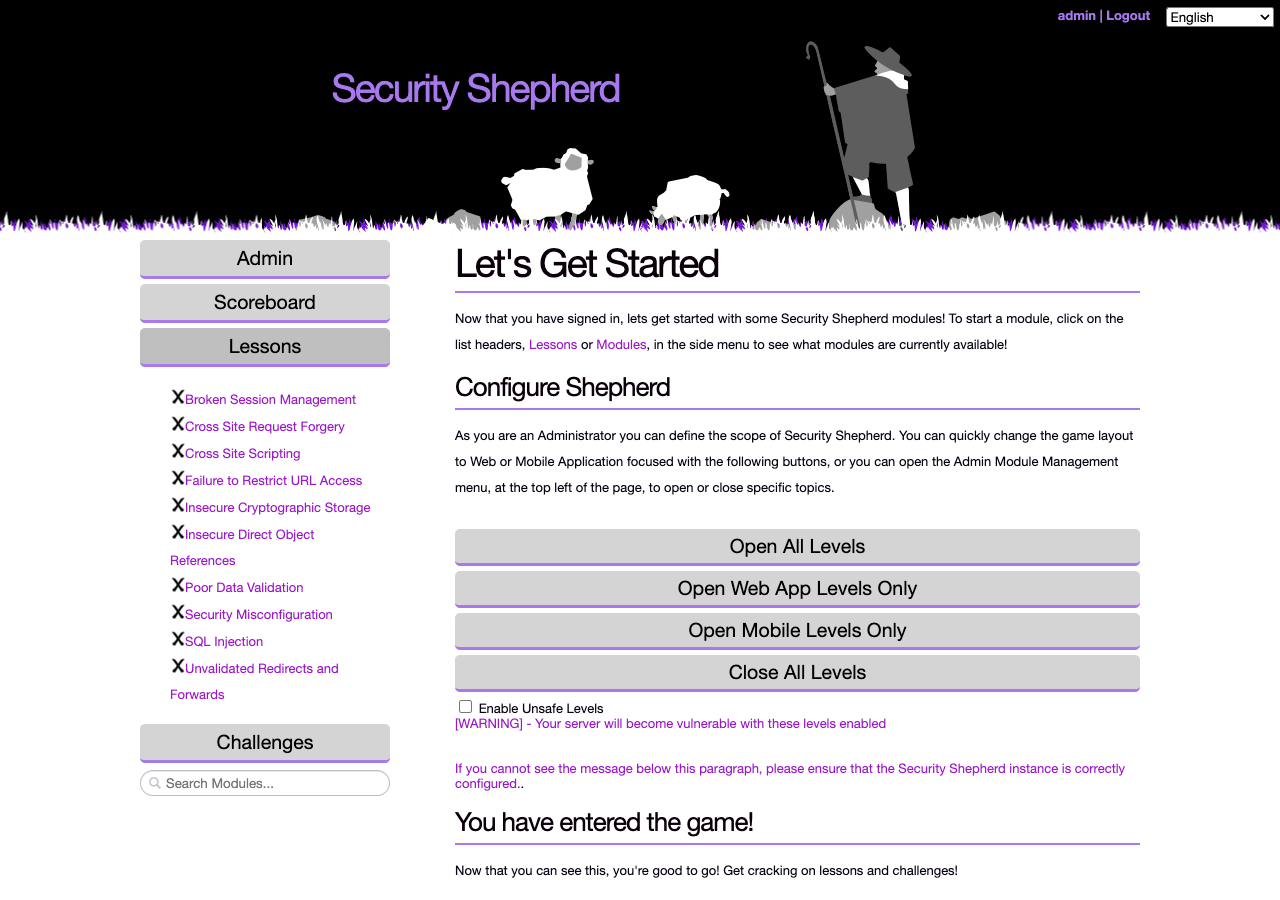
- Click Open Web App Levels Only. The mobile levels need an Android setup, which this guide doesn't cover. Tick Enable Unsafe Levels first only if the machine is isolated.
- To see every open level at once, grouped by topic, go to Admin → Module Management → Change Module Layout and click Enable Open Floor Mode. How Shepherd works shows each layout from a player's side.
- Pick a lesson from the menu on the left. When you complete a level, you get a result key. Paste it into the Submit Result Key Here box to score the level. How Shepherd works explains scoring and the rest of the game.
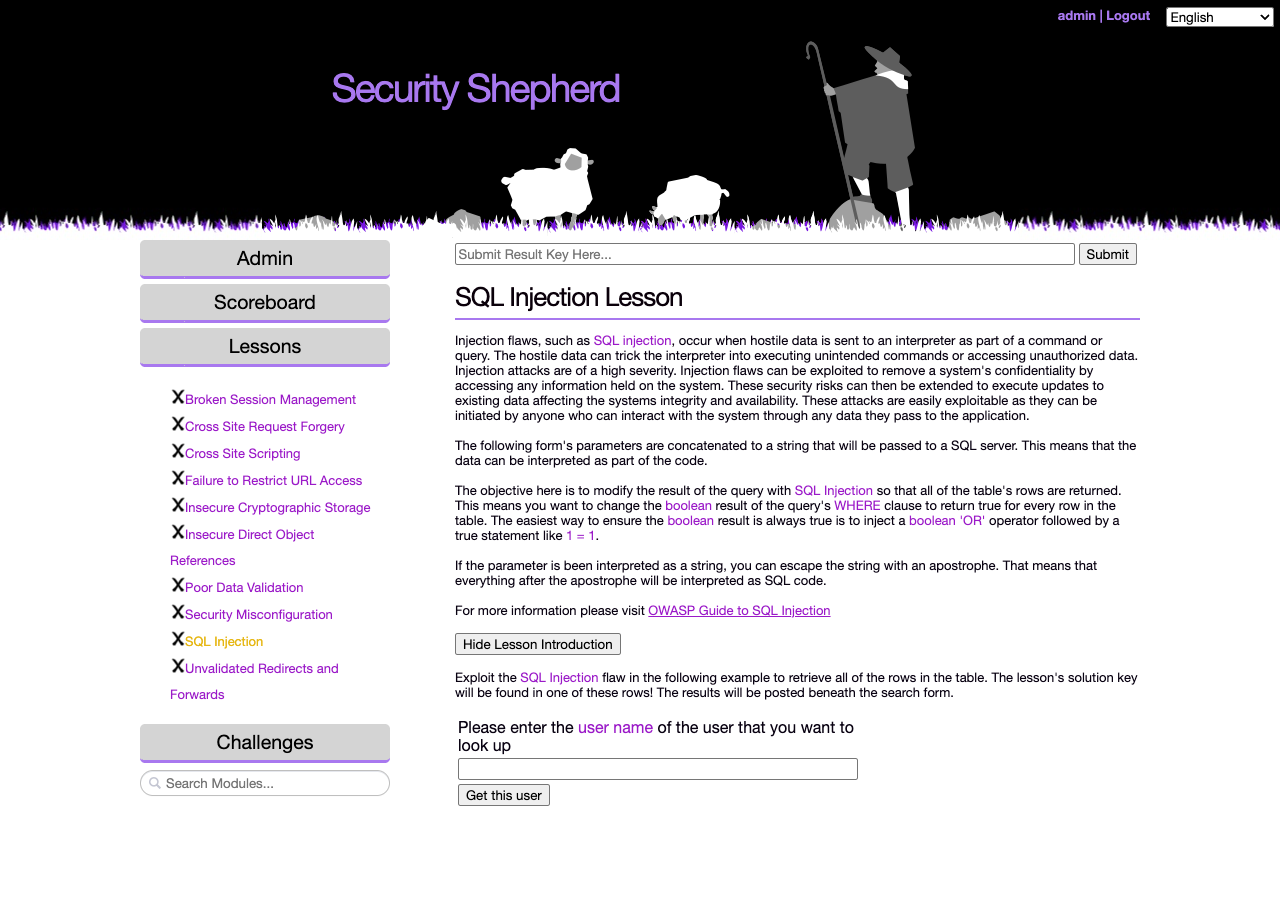
To see how to complete a level, go to Admin → Configuration → Cheat Sheet Management and click Enable Cheat Sheets for Administrators. Then reload the page. A Cheat button appears in the left menu, and shows the cheat sheet for the level that's open. It gives the answer away, so leave cheat sheets off if you want the challenge.