Admin menu reference
This page describes every page in Security Shepherd's Admin menu, for organisers and administrators. To set up an event step by step, follow Running a CTF instead.
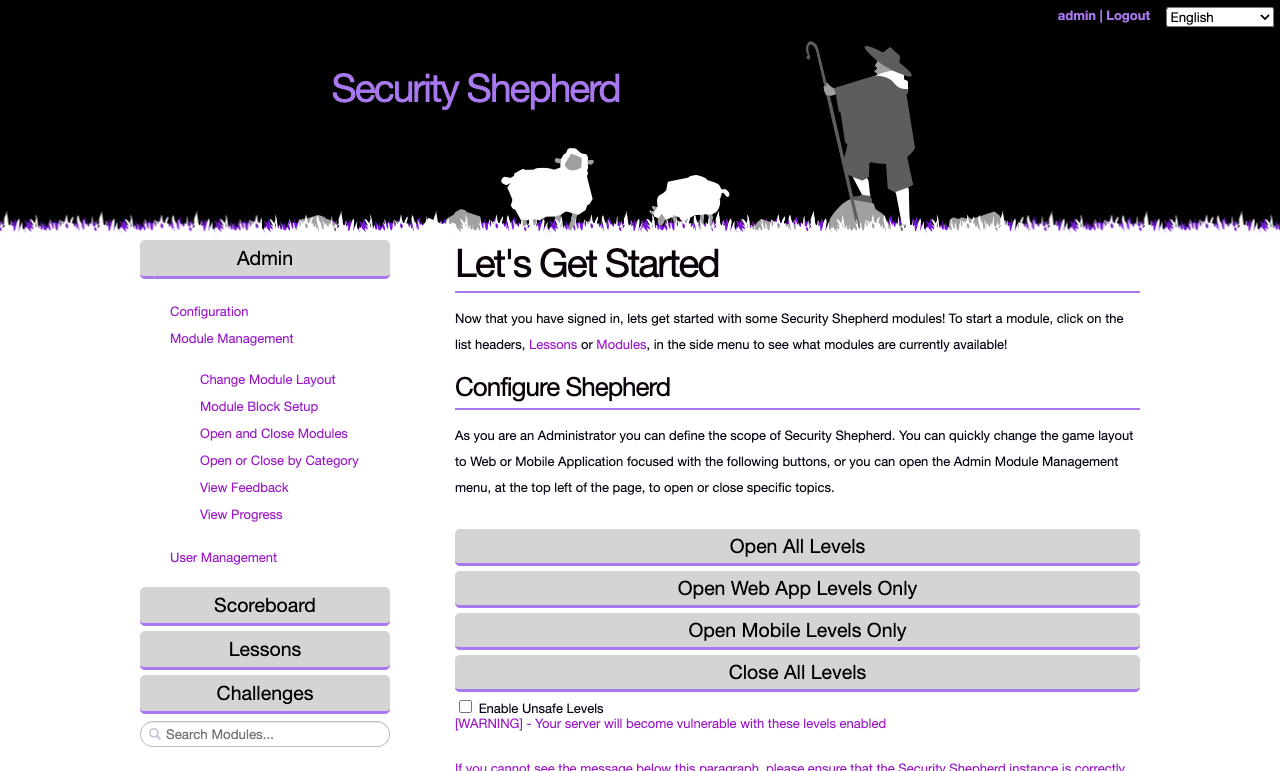
The Admin button at the top of the left-hand menu opens three sections: Configuration, Module Management and User Management. One section is open at a time.
Changes take effect immediately. Players may need to reload the page to see them.
The start page
The start page that admins see, Let's Get Started, has a Configure Shepherd section with shortcuts for opening levels. To get back to it, reload the page.
| Button | What it does |
|---|---|
| Open All Levels | Opens every web and mobile level |
| Open Web App Levels Only | Opens the web levels and closes the mobile ones. This is the usual choice. |
| Open Mobile Levels Only | Opens the mobile levels and closes the web ones |
| Close All Levels | Closes every level |
| Enable Unsafe Levels | Tick it before clicking Open All Levels or Open Web App Levels Only to include the unsafe levels, which make the server itself vulnerable. Only do this on an isolated server. |
Configuration
| Page | What it does |
|---|---|
| About Security Shepherd | Information about the project |
| Cheat Sheet Management | Turns on cheat sheets for administrators, or for everyone, or turns them off. While they're on, a Cheat button in the left-hand menu shows how to complete the open level. Turning them on for everyone gives the answers away. |
| Feedback Configuration | Makes players fill in a feedback form before a level is marked as complete. Read the answers in View Feedback. |
| Open/Close Registration | Lets people create their own accounts from the login page, or stops them. Players have to reload the login page to see the registration link. |
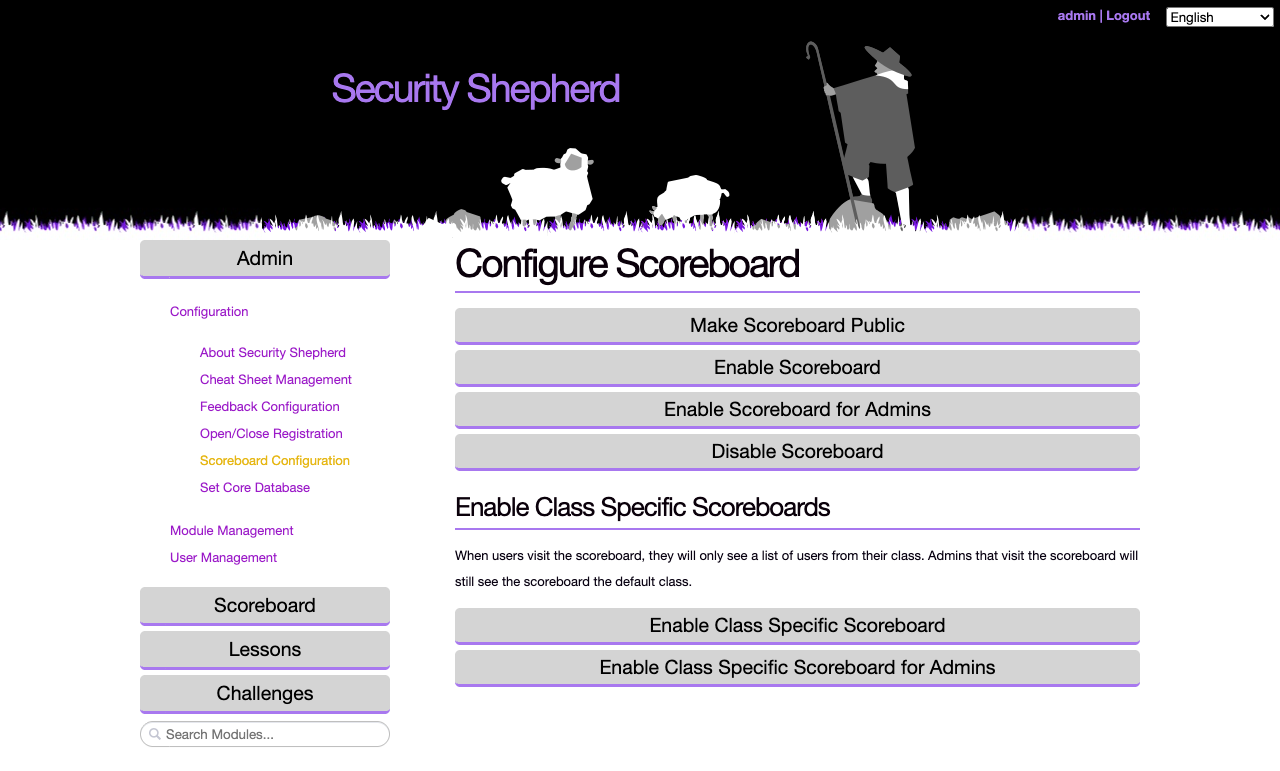
| Scoreboard Configuration | Who can see the scoreboard. See below. |
| Set Core Database | Changes the database server that Security Shepherd's core database is on. Only needed for an unusual database setup. |
Scoreboard Configuration
| Button | Who sees the scoreboard |
|---|---|
| Make Scoreboard Public | Anyone, without logging in |
| Enable Scoreboard | Every logged-in user |
| Enable Scoreboard for Admins | Admins only |
| Disable Scoreboard | No one |
| Enable Class Specific Scoreboard | Logged-in players, who see only the players in their own class. Admins see the default class. |
| Enable Class Specific Scoreboard for Admins | Admins only, showing the class set in Set Default Player Class |
Module Management
| Page | What it does |
|---|---|
| Change Module Layout | Chooses how levels are presented to players: CTF Mode, Open Floor Mode or Tournament Mode. How Shepherd works shows each one from a player's side. |
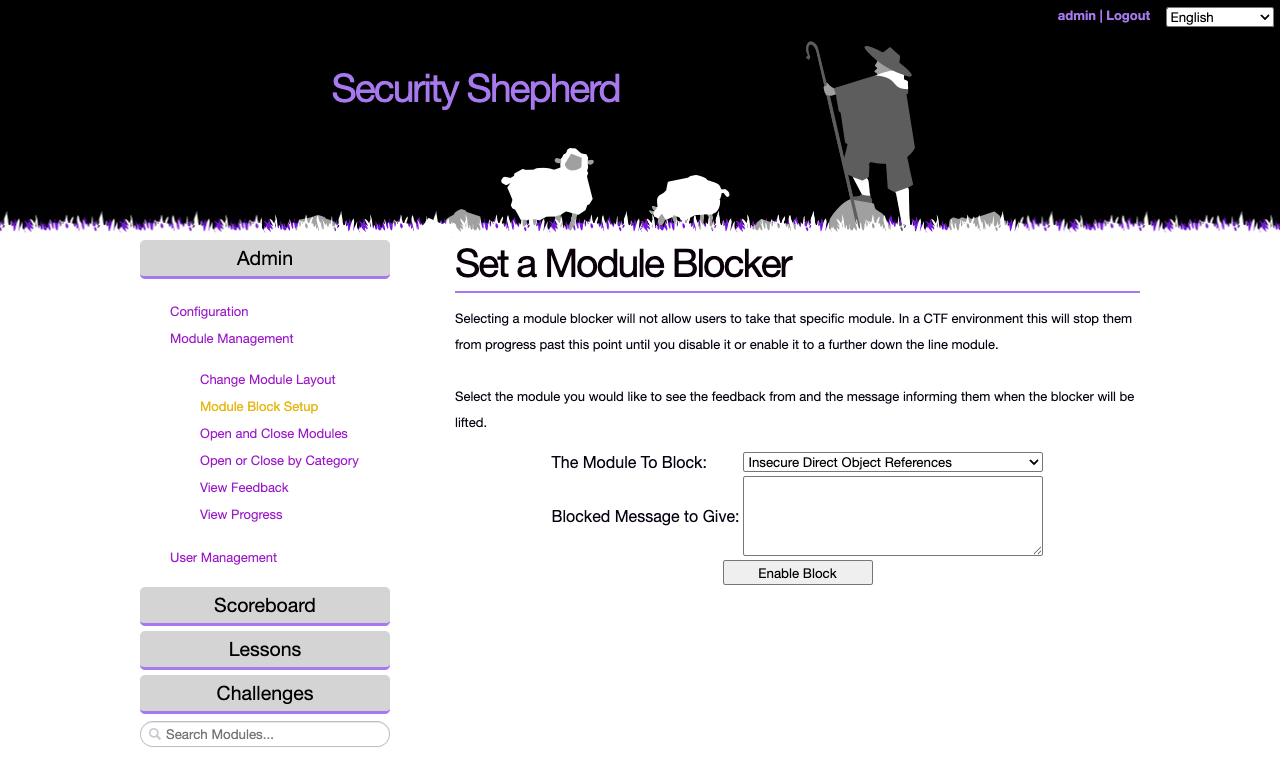
| Module Block Setup | Stops players from opening one level, with a message of your choosing. In CTF Mode, that stops them from going any further. See below. |
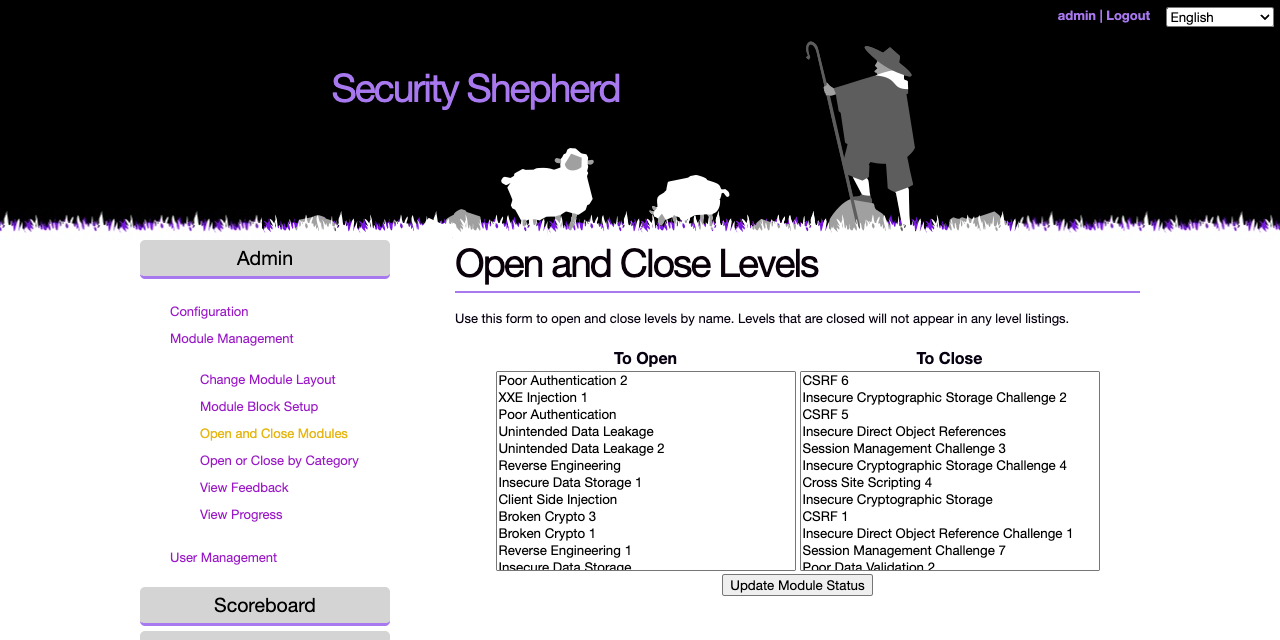
| Open and Close Modules | Opens and closes individual levels. Closed levels don't appear in any player's menu. |
| Open or Close by Category | Opens and closes every level in a topic at once |
| View Feedback | The feedback players gave for a level. See below. |
| View Progress | How many levels each player in a class has completed. See below. |
Open and Close Modules
Select levels in the To Open list or the To Close list, then click Update Module Status. Hold Ctrl, or Cmd on a Mac, to select more than one.
Module Block Setup
Choose the level to block and write the message players will see, such as when the block will be lifted, then click Enable Block. Use it to pause an event, for example to teach a topic before the levels that need it. Come back to this page to remove the block.
View Feedback
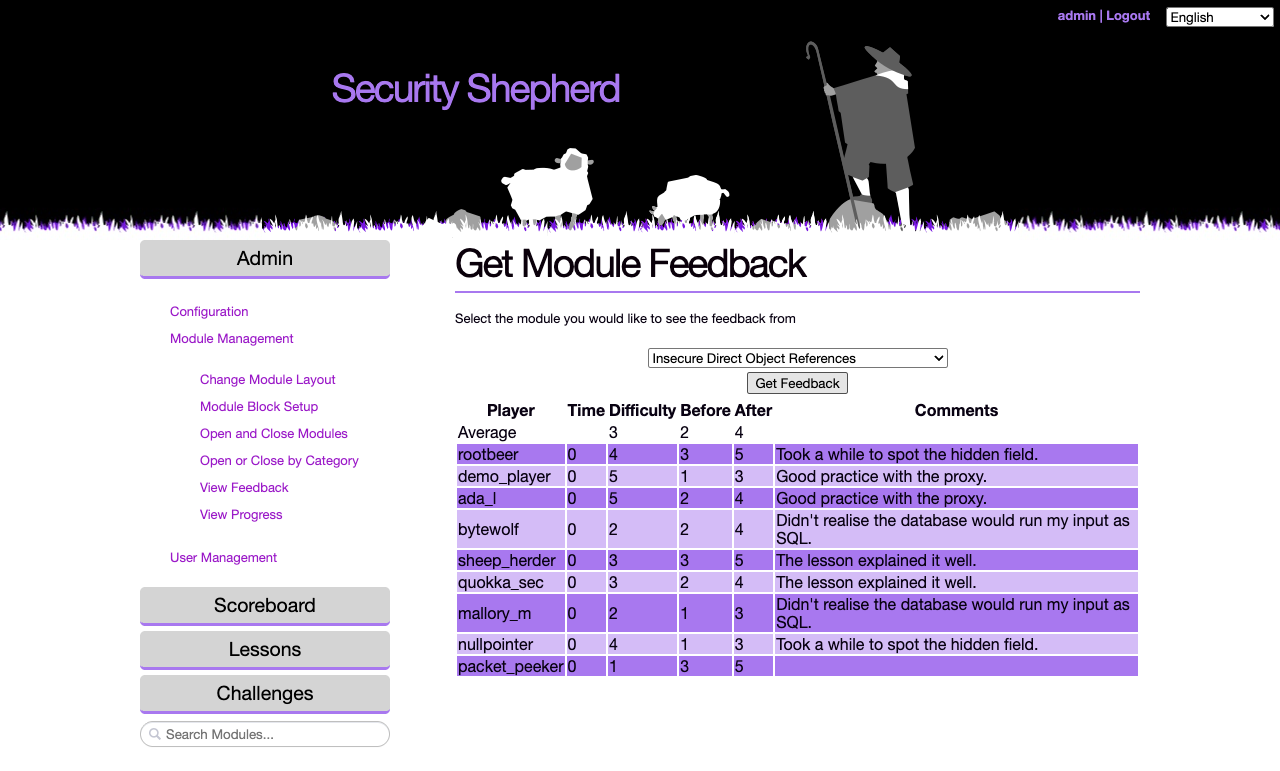
Choose a level and click Get Feedback. The table shows each player's answers: how long they took, how hard they found it, how much they knew before and after, and their comments. The first row is the average.
Feedback is only collected while Feedback Configuration is on.
View Progress
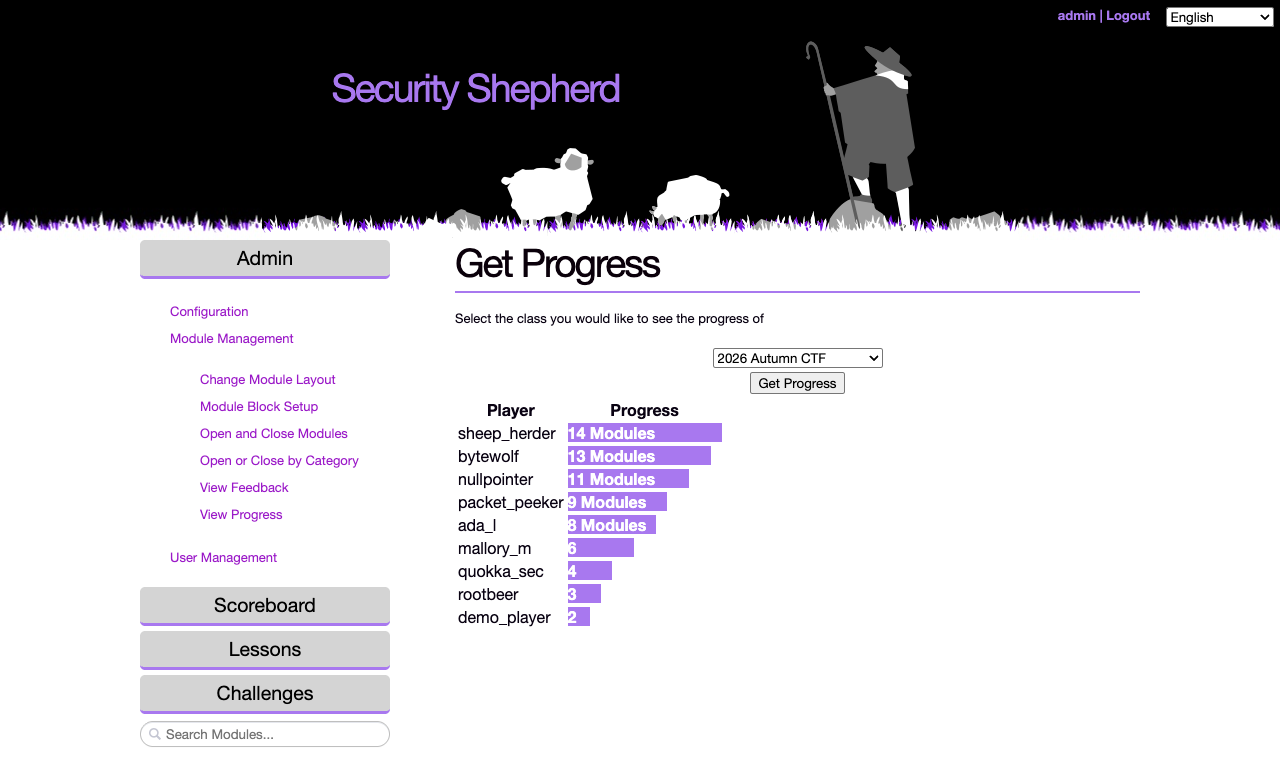
Choose a class and click Get Progress to see how many levels each player has completed. Use it to spot players who are stuck.
User Management
A class is a group of players, such as the players at one event. Players in a class share a scoreboard when class-specific scoreboards are on, and medals and bonus points are awarded per class. Players without a class are listed as Unassigned Players.
| Page | What it does |
|---|---|
| Add Players | Creates a player account in a class. The password you set is temporary: the player changes it at their first login. |
| Delete Players | Deletes a player's account |
| Add / Deduct Player Points | Adds points to a player's score, or takes them away with a negative number. A player with a negative score doesn't appear on the scoreboard. |
| Assign Players to Class | Moves players into a class, or out of one |
| Create Class | Creates a class, with a name and a year |
| Create New Admin | Creates an admin account, with a temporary password |
| Reset Password | Sets a new temporary password for a player, which they change at their next login |
| Set Default Player Class | The class that players who register themselves join |
| Suspend Player | Stops a player from logging in for a number of minutes |
| Undo Suspend Player | Ends a suspension early |
| Upgrade Player to Admin | Makes a player an admin |
| Downgrade Admin to Player | Removes an admin's admin rights |